The Accessibility Hub provides two ways to track and audit PDFs on your site:
PDFs uploaded using the 'file' content type (separate tutorial) — PDFs properly uploaded through Drupal's File content type and linked to a node ID. This is the recommended approach for new uploads.
PDFs linked directly or embedded in content — These are PDFs that were linked directly in WYSIWYG editors or hosted externally (often appearing as https://www-s3-live.kent.edu/s3fs-root/s3fs-public/... URLs). This tutorial covers how to audit these files.
This tutorial focuses on auditing PDFs linked directly or embedded in content.
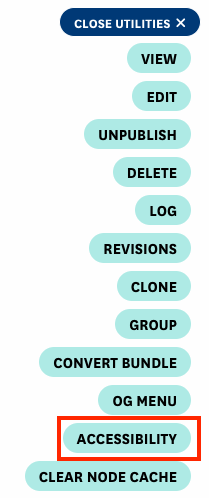
Navigate to your group's homepage and click the Open Utilities button.

From the utilities pop-up menu, select Accessibility.
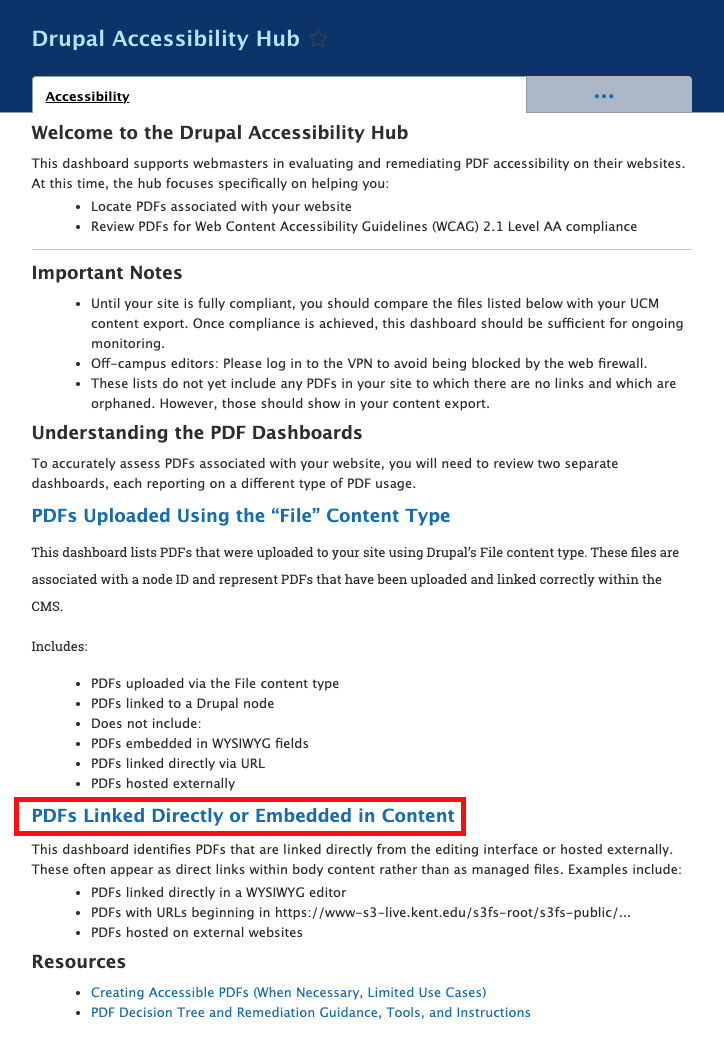
You'll be directed to the Drupal Accessibility Hub for your group. Click on the "PDFs Linked Directly or Embedded in Content" link.
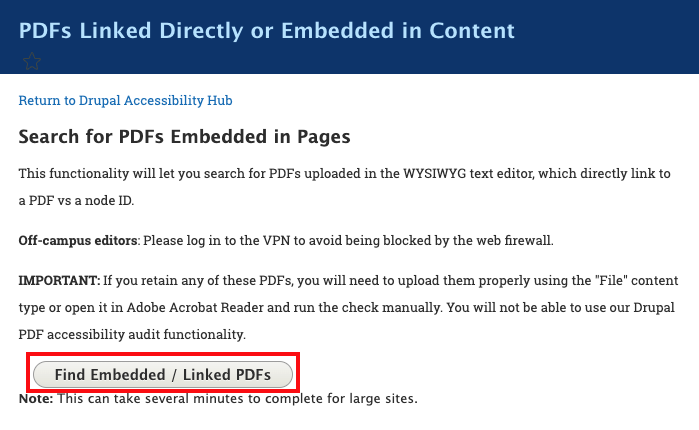
- On the next page, click Find Embedded / Linked PDFs
- Wait for the processing to complete
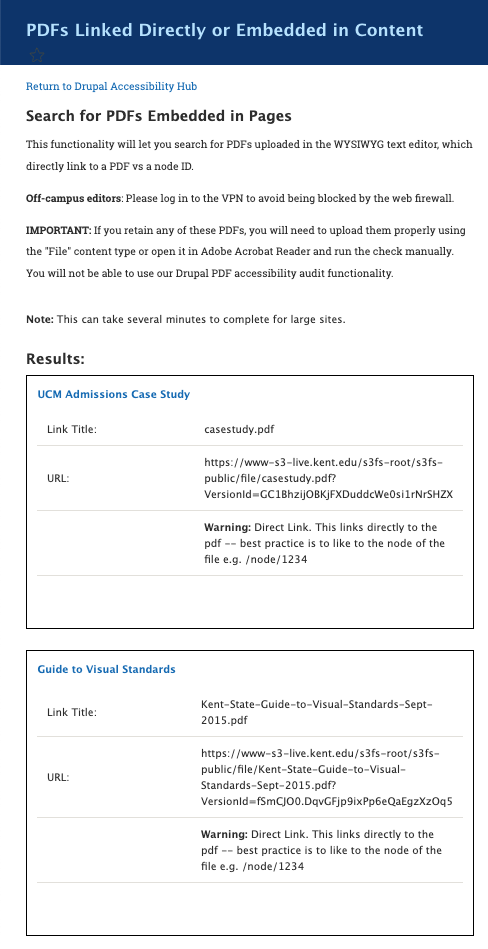
- Once complete, you will see a listing of all such PDFs on your site.